 SUNSET:

 10
10Find out what planets are visible tonight, the brightest planet in the sky right now, and the best times to observe with our interactive astronomical almanac.
Launch our Astronomical Almanac!
Find everything you need for observing tonight in one place. Our Astronomical Almanac presents basic astronomical data customized for your location for any date from AD 1600 to 2400. The interactive tool displays sunrise and sunset times, morning and evening twilight times, moonrise and moonset times, the Moon's phase, a list of naked-eye planets visible in the evening and morning skies, rise and set times for each of these planets, and more.
How to Use the Astronomical Almanac to Find What Planets Are Visible Tonight
When you launch the Astronomical Almanac , it will open in a new window. The almanac initializes itself to the current date and time based on your computer's clock and sets the latitude and longitude to that of Sky & Telescope's office in Cambridge, Massachusetts. You can reset the location by using the Country and City pull-down menus, or you can set latitude and longitude directly.

Once you've picked the city nearest your location, the almanac sets the corresponding time zone from your computer's clock and decides whether daylight-saving time (DST) is in effect. Clicking Reset restores the almanac to the current date and time. You may also step forward or backward in time by 1 hour, day, or week by clicking the appropriate buttons.
The first time you launch the almanac, set your location and time zone, then you'll have the option of loading these preferences next time you come back. You can save your location for future use using the "Save location?" link. If you have saved your location before, you'll need to load the new location using the "Load location?" link on the almanac page.
Once you've entered your date, time, and location, click Calculate and the almanac will show you the Julian Date (for "official" astronomical timekeeping), your location (latitude and longitude), the local date and time, and your time zone relative to Universal Time (which is basically the same as Greenwich Mean Time).
Below that, the tool displays a graphic representation of the Moon's phase and then reports the Moon's age (in days since the last new Moon). The Moon's displayed phase is accurate to within a fraction of a day. It is indicated using 28 different symbols, whereas a complete lunar cycle takes 29½ days. Why the discrepancy? Simply to ensure that on the dates of new, first-quarter, full, and last-quarter Moon, the correct symbol is always shown.
Next to the Moon you'll find the local sunrise and sunset times, moonrise and moonset times, and times when twilight ends (in the evening) and begins (in the morning). You'll also find listings of which naked-eye planets, if any, appear in the evening and morning skies, followed by a text box indicating any significant astronomical events that occur on the specified date, such as a meteor shower or a conjunction of the Moon and a bright planet or star.
Scroll down within the tool to view detailed information about the Sun, Moon, and five naked-eye planets.
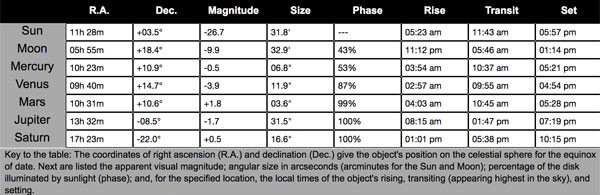
Listed first are the coordinates of right ascension (R.A.) and declination (Dec.), which give the object's position on the celestial sphere for the equinox of date. Next are listed the apparent visual magnitude; angular size in arcseconds (arcminutes for the Sun and Moon); percentage of the disk illuminated by sunlight (phase); and, for the specified location, the local times of the object's rising, transiting (appearing highest in the sky), and setting.
For more on observing the planets you see tonight, visit our planet observing guides.
If you see any problems with this tool, or any of our interactive observing tools, please send an email to [email protected].

Comments
Miguel Araujo
June 14, 2017 at 4:56 am
Why don't you include Uranus and Neptune?
You must be logged in to post a comment.
Monica Young
June 15, 2017 at 11:30 am
The almanac is intended for naked-eye use, while Uranus and Neptune are only visible through telescopes. If you want information on Uranus and Neptune, visit http://skyandtelescope.org/stargazing-and-observing/ice-giants-neptune-and-uranus/ (scroll all the way down for the link to the charts).
You must be logged in to post a comment.
paul-livio
September 23, 2017 at 9:24 pm
Much improved Almanac, Great work!
Paul
You must be logged in to post a comment.
December 1, 2017 at 9:51 am
I can no longer print the almanac due to the new color scheme. I'm sure it's an easy fix, I just haven't figured it out yet(?) I tried saving my location several times, but it does not want to save my coordinates.
You must be logged in to post a comment.
December 1, 2017 at 10:03 am
I used to be able to print out the almanac on one page. This is no longer possible? I'm not seeing any improvement over the other version. Is there any way to go back to the earlier version?
You must be logged in to post a comment.
Gregory-Parsons
January 6, 2018 at 10:43 am
you may try to copy and past into a word doc. it works for me
You must be logged in to post a comment.
Leviset
November 6, 2019 at 6:37 pm
Where’s the actual download link?
Is for Windows or Mac?
You must be logged in to post a comment.
Monica Young
November 7, 2019 at 9:43 am
This tool isn't for download, it's a javascript tool that you can use within the browser. Click on "Launch the Astronomical Almanac" to launch the application. (It may open in another tab or window.)
You must be logged in to post a comment.
rrpallechio
January 26, 2022 at 8:47 pm
When I set my latitude and longitude, then press calculate, it resets to Antigua. I can set a city near me and that works using the Country, City drop down, but I can't enter my location using the latitude and longitude dropdowns, it always goes back to Antigua. Is there a setting I am missing?
You must be logged in to post a comment.
Martin Lewicki
April 19, 2025 at 7:40 am
Can you please add a function to rotate the Moon 180 degrees for southern hemisphere observers? For us down under, it would certainly avoid the mental fatigue of always having to do this in our heads!
Martin
You must be logged in to post a comment.
You must be logged in to post a comment.